Open the booth at an event
Getting the booth onto the seller's device on the day.
If you're an organiser (admin or affiliate) handing the booth to a teammate, this is the bit where you put the right URL on the right device. (If you're a Ticket Seller, you can skip this — your sign-in takes you to the booth automatically.)
Get the booth URL
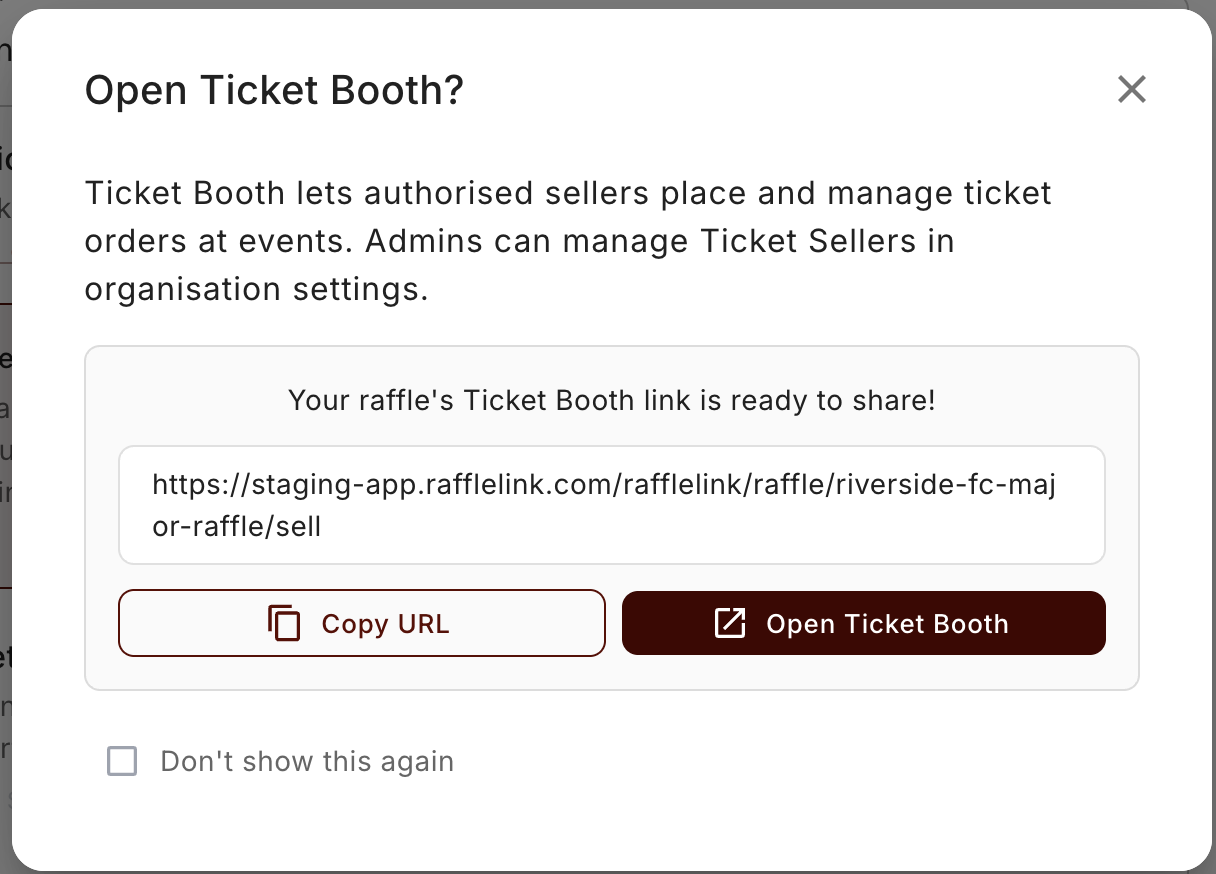
From your Raffles list — or your raffle's dashboard — open Ticket Booth. You'll see a small dialog with the booth URL, a Copy URL button, and an Open in new tab option.
Hand it to the seller's device
Send the URL to the device that'll be running the booth on the day — usually the seller's phone. A few practical ways:
- Text or email the URL to the seller.
- Open it on their device directly and bookmark it.
- If you're handing over a tablet at the table, just open it in the browser there.
The booth works best in a normal browser tab on the seller's phone. They'll sign in (or already be signed in), and from there they can start placing orders.
"Don't show again"
If you open the booth often, tick the Don't show again box on the modal — next time you click Ticket Booth from the Raffles list, it'll open straight away without the confirmation dialog.
Who can open it
Org admins and affiliates can open the booth for any raffle they have access to. Ticket Sellers don't see this modal at all; their sign-in puts them in the booth, on whichever raffles they've been granted access to.