Enable Ticket Booth on a raffle
Turn the booth on per raffle once your raffle is live.
The booth is set per-raffle, not per-organisation — so you enable it on each raffle that's going to have an in-person presence. It only becomes available once your raffle is active or awaiting draw and its start date has arrived, and while sales aren't paused. You can't open the booth on a draft, and a seller who opens it before the start date sees: "Ticket sales for this raffle have not opened yet."
Turn it on
- Open your raffle's dashboard.
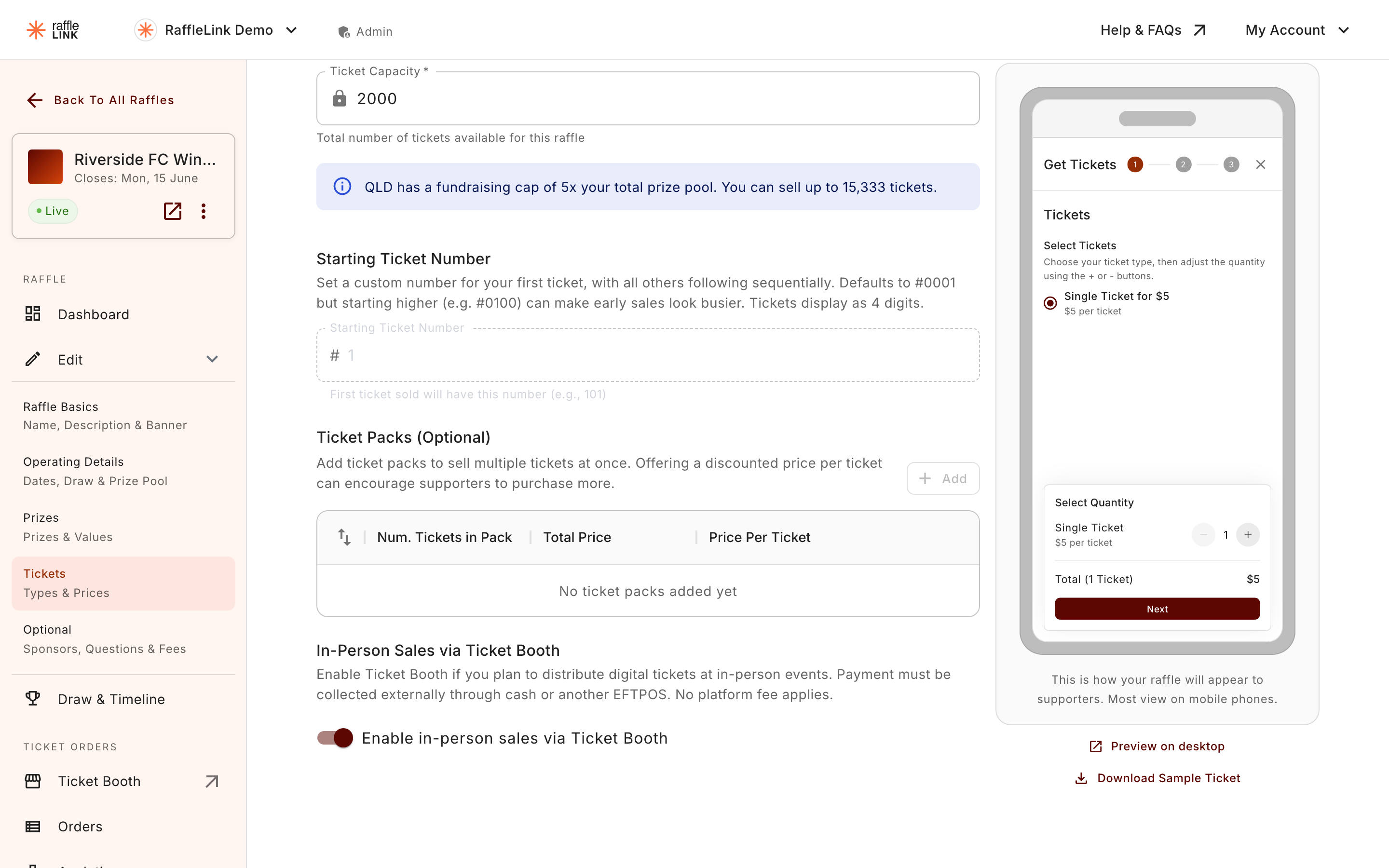
- Go to the Tickets edit step.
- Toggle Ticket Booth on.
That's it. Once it's on, a Ticket Booth link appears in your raffle's sidebar under the Ticket Orders section.
You can turn it off again
If an event ends and you don't want the booth available any more, switch the toggle off. Any orders you've already taken stay where they are — they remain visible in your raffle's orders, analytics, and reports.
What this doesn't change
Enabling the booth doesn't change anything on your public raffle page or for online buyers. Online purchases keep flowing through the standard checkout; the booth is an additional way to sell, not a replacement.