Bulk import booth sales
Recording a stack of paper raffle sales from an event all at once, from a spreadsheet.
Ran a stall at an event and took a pile of paper entry forms? Instead of typing each one into the booth, you can enter them all at once from a spreadsheet. Every buyer is issued their digital tickets and emailed a confirmation, exactly as if you'd rung the sale up at the booth by hand.
You'll find it in the Bulk import tab of the Ticket Booth, next to Place Order and Manage Orders. The import doesn't need the Ticket Booth toggle switched on, but it does need the raffle to have started: an import before the start date is rejected with "Ticket sales for this raffle have not opened yet." A recorded sale can't predate the moment tickets went on sale.
The paper-to-import flow
This feature is built around the way booths actually work at an event:
Print blank forms. Use Print blank forms to print entry forms for buyers to fill in while they queue. The fields on the form line up exactly with the import columns, so transcribing later is painless.
Download the template. Click Download template for a spreadsheet (booth-sales-import-template.csv) that already matches this raffle's ticket packs and questions.
Type up the forms. Copy each collected form into its own row, in Excel or Google Sheets.
Upload and preview. Drop the finished .csv in to see a row-by-row preview before anything is created.
Confirm. Each row becomes a real sale — tickets issued, buyer emailed.
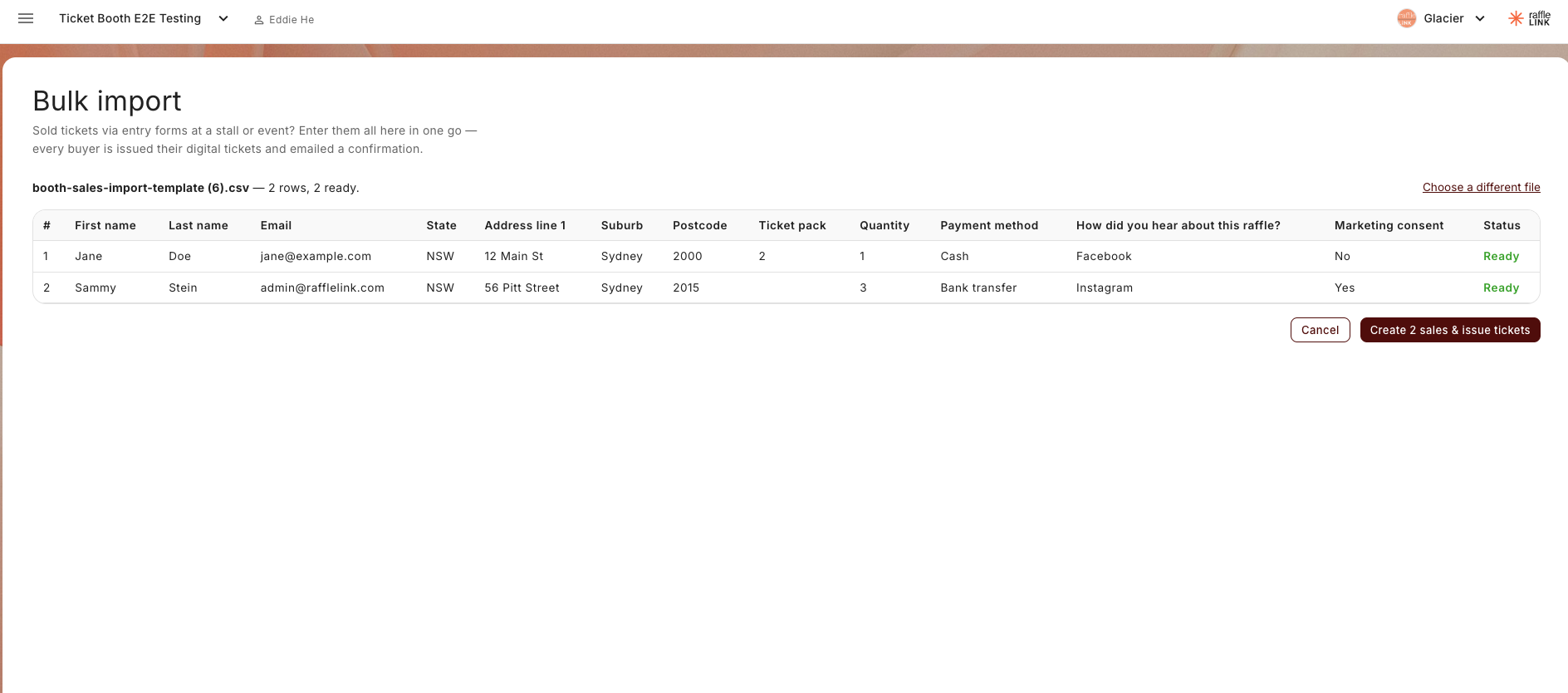
The columns
The template is generated for your specific raffle, so the exact columns depend on your ticket packs and any questions you ask. In general:
| Column | Notes |
|---|---|
| First name / Last name | Required. |
| Required — this is where the buyer's tickets and confirmation are sent, so get it right. | |
| State | Required. The buyer's state (NSW, VIC, QLD, and so on). |
| Address line 1 / Suburb / Postcode | Only needed for buyers in SA, WA, and ACT, where the rules require a full address. Leave blank otherwise. |
| Ticket pack | Only appears if your raffle offers packs. Enter the pack size (for example 5 or 10); leave it blank for single tickets. |
| Quantity | Required. A whole number from 1 to 100 — the number of packs, or of single tickets if the pack column is blank. |
| Payment method | Required. One of Cash, EFTPOS, Bank transfer, Card (in person), or Other — a label for your records; you collect the money yourself. |
| (one per question) | If your raffle asks buyers questions, each becomes its own column. |
| Marketing consent | Optional. Y or N — blank counts as no. |
What happens when you confirm
Each row is processed as its own booth sale. When it's done you'll see a summary like "X created · Y already imported · Z failed." If a few rows fail — say the raffle sells out partway through — the ones before it are still created and emailed; only the rows that couldn't go through are reported as failed, so you can fix and re-add just those.
Re-uploading a file creates duplicate sales
RaffleLink doesn't match imports against buyers you've already entered — so uploading the same file twice will create a second set of sales (and a second batch of emails). If an import didn't finish cleanly, open Manage Orders to see what already went through before you retry, rather than re-uploading the whole file.
A few limits and notes
- You can import up to 100 buyers per file. Got more? Split them across a few imports.
- The file must be a
.csv, exported from your spreadsheet. - Whoever runs the import is recorded as the seller for those sales.
- The imported sales show up in Manage booth orders alongside everything else, where you can view or void them.
Who can use it
The same people who can take a booth sale: Admins, Affiliates (for raffles they created), and Ticket sellers. It's the bulk version of placing an order at the booth — same result, just many at once.