Your raffle overview
The dashboard for a live raffle — stats, sharing, and the actions available right now.
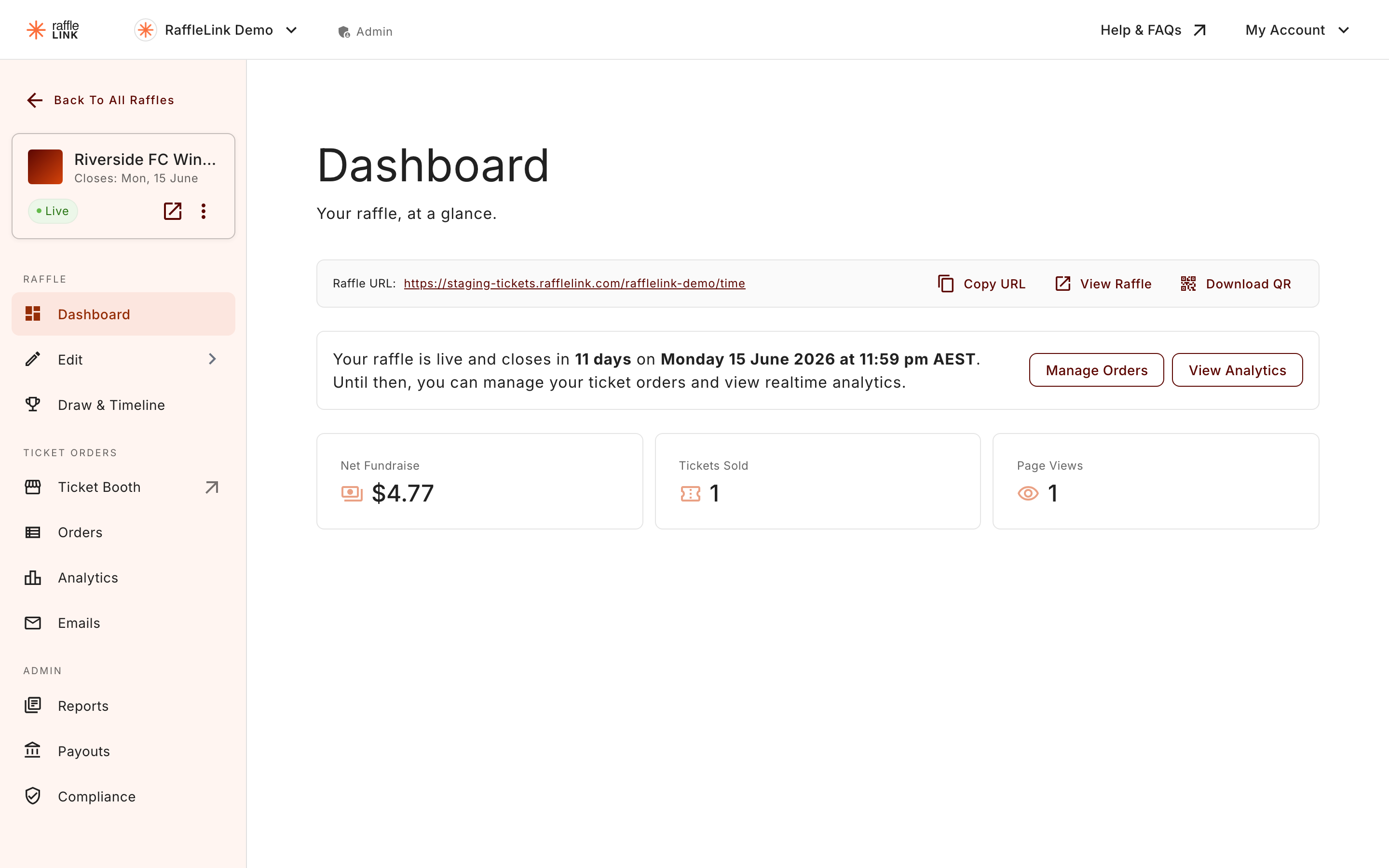
When you open a live raffle, you land on its overview — the home base for everything to do with that raffle. It's built to answer "how's it going?" at a glance and put the next sensible action within reach.
What you'll see
- Your raffle's web address, with quick Copy URL and Download QR so you can share it anywhere.
- Headline stats — how much you've raised, tickets sold, and page views.
- Status-aware actions — the buttons change depending on where your raffle is in its life. A raffle that's selling shows different options from one that's closed and waiting on the draw.
- A Timeline card — the five stages of your raffle (Open Raffle, Close Raffle, Draw Winners, Publish Results, Receive Funds), with the completed ones ticked off and the current one marked Next up. When the next step is something you can do today, its button sits right there. (Emailing your winners isn't a stage, because it's optional.)
Once you've drawn, the overview nudges you to the one remaining step: "You've drawn your winners! Publish your results to finish up and finalise your payout. You can also email your winners from the draw page, or let them know your own way." — with Publish Now as the main button.
The sidebar
From the overview, the sidebar gets you everywhere else for this raffle. It's grouped into two areas:
- Ticket Orders — Ticket Booth (if enabled), Orders, Analytics, and Emails.
- Admin — Reports, Payouts, and Compliance.
What you see depends on your role. Readers can view Payouts and Compliance read-only; Ticket Sellers don't see this dashboard at all (they go straight to the booth).
"Management mode"
Editing a live raffle happens in what we call management mode — reached by opening any of the edit steps from a live raffle. It looks like the builder you used to create the raffle, but it behaves more carefully: some fields are locked, and some changes notify your ticket buyers. The next two articles cover exactly what's editable and how notifications work.