Basics
Title, custom URL, banner image, and description — the first impression of your raffle.
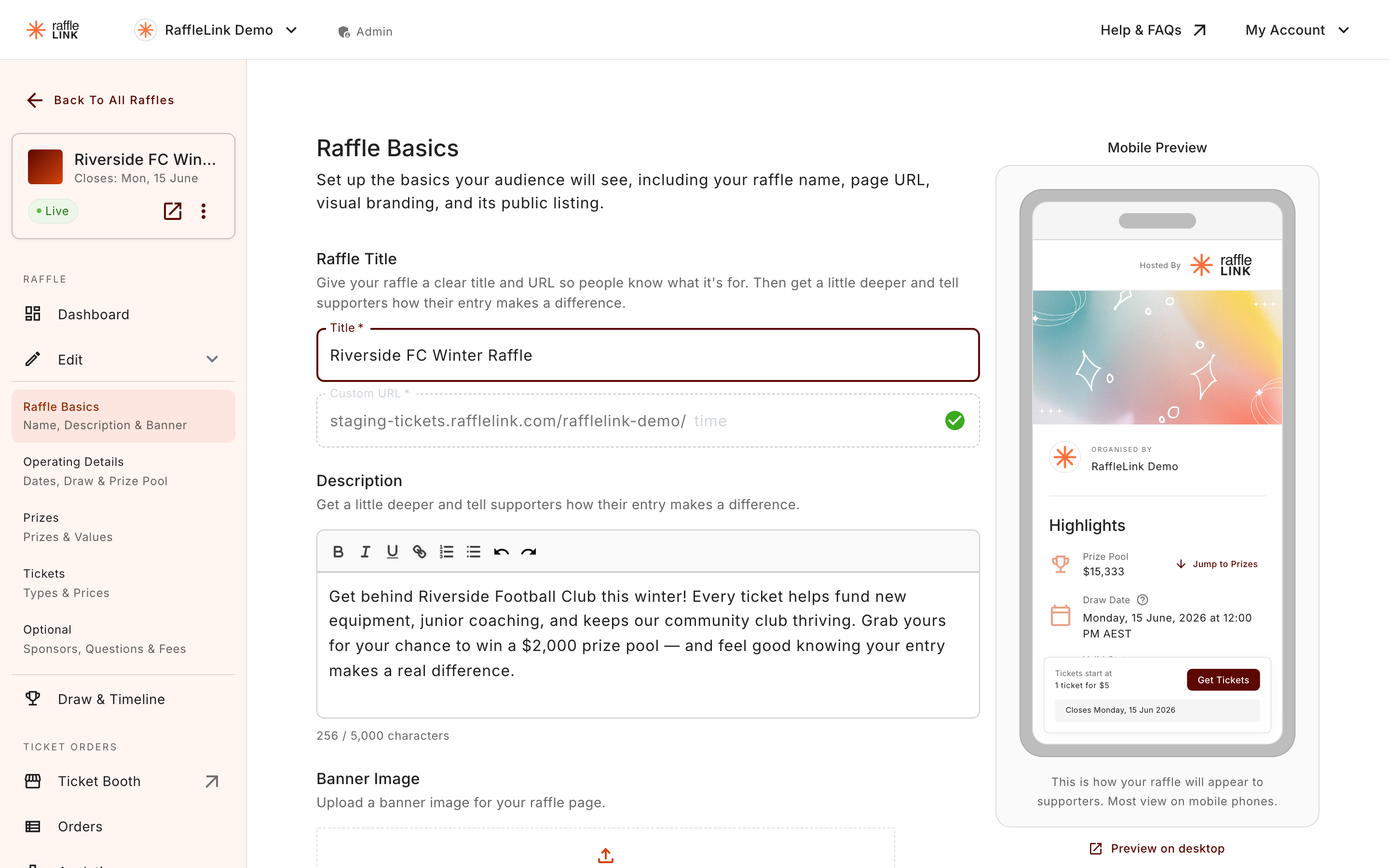
The basics are what a ticket buyer sees first, so this step is worth a little care. The page is laid out in three blocks: Raffle Title, Description, and Styling. Between them you'll set:
- Title — what your raffle is called. Make it clear at a glance ("Westside FC Summer Raffle"), not clever-but-vague.
- Custom URL — the raffle's web address. It sits after your organisation's slug:
tickets.rafflelink.com/your-org/this-raffle. - Description — the pitch. Tell supporters what the raffle is for and how their entry makes a difference.
Styling
The Styling block ("Make an impression with a banner, accent colour, or seasonal template.") is where your raffle gets its look: the banner image, the accent colour, and the seasonal templates behind the Explore Templates button in its header.
Your banner image
Drag a picture straight onto the Upload Banner Image dropzone, or click it to choose a file. Once an image is set, the dropzone becomes a preview of it, with Replace and Remove buttons, so swapping it later takes one click.
Banner image size
The recommended size is 1200px × 630px (a 1.91:1 ratio). That's the sweet spot that looks crisp on the raffle page and when your link is shared on social media.
No image? Browse free stock photos
You don't have to supply your own picture. Under the dropzone, after "Or", there's a browse stock photos link. It opens a Browse Stock Photos window: search for what you're after, page through the results, pick a photo, and choose Select.
The photos come from Pexels and are free to use commercially. RaffleLink credits the photographer automatically on your public raffle page, so you don't have to do anything.
Give it your colour
By default your raffle page uses RaffleLink's branding. In the Styling block there's a one-line row, Customise Accent Colour: choose Change Colour and pick from Default (RaffleLink branding) or eight presets — Orange, Berry, Fuchsia, Violet, Blue, Teal, Green, and Gold.
The accent flows through the buttons, links, and highlights on your public raffle page — and it carries over into Present your results if you run a reveal on the night.
Dress it up for the season
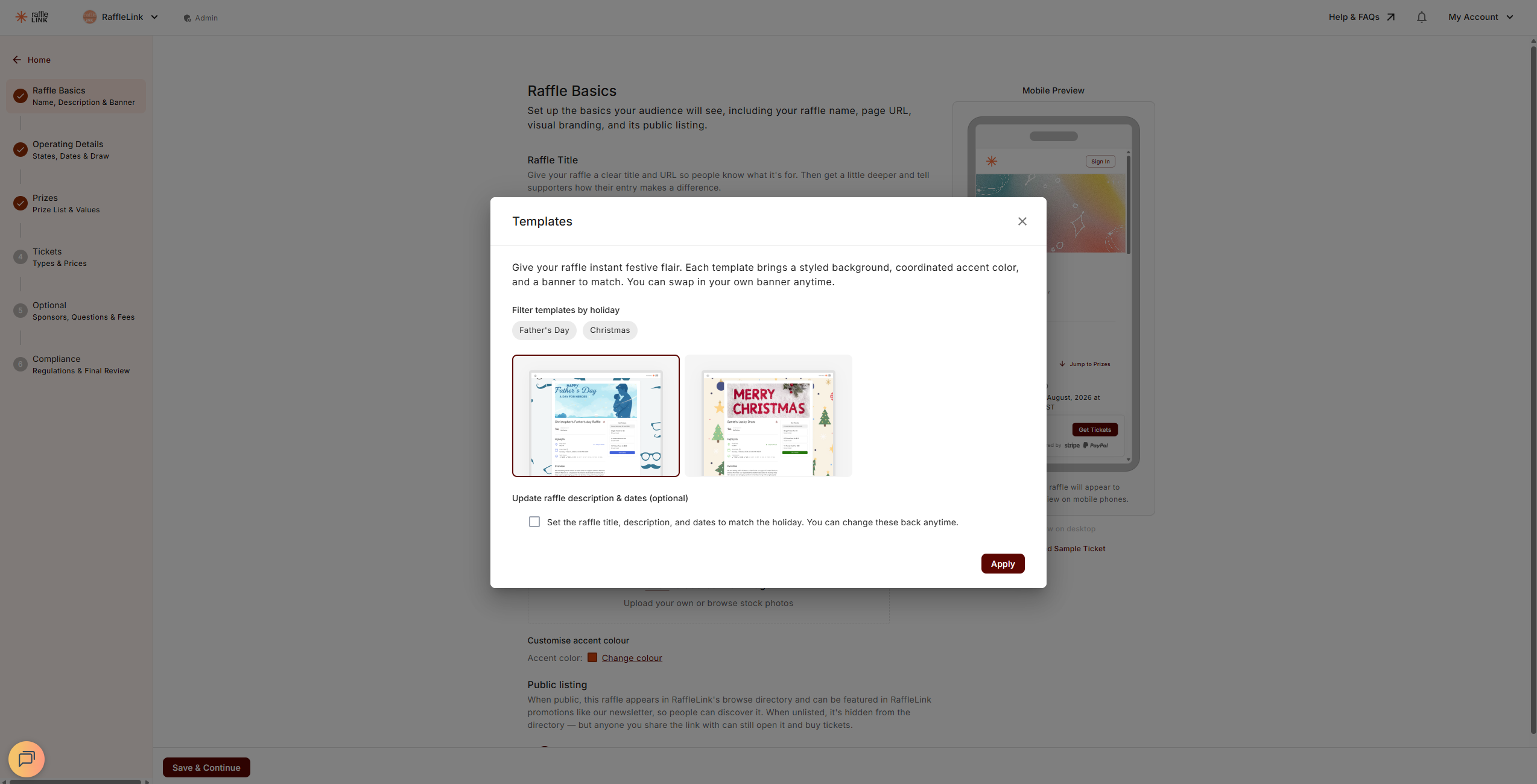
Running a Christmas or Father's Day raffle? The Styling header has an Explore Templates button that opens a Templates gallery. Pick a holiday template and it styles your raffle in one go — a themed background, a coordinated accent colour, and a matching banner.
There's an optional tick-box, Update raffle description & dates, that also fills in a suggested title, description, end date, and draw date to match the holiday. It's a starting point — change any of it afterwards.
A couple of things to know while a template is applied:
- The banner it comes with fills in automatically. Upload your own image any time to replace it.
- The accent colour is set by the template, so the Change Colour link is switched off and reads "Set by your template". Choose Remove Template to unlock it and return to RaffleLink branding.
Two templates today
Father's Day and Christmas are the templates available right now — more seasons may follow.
Looking for the public listing toggle?
It's no longer on this step. Choosing whether your raffle appears in the public directory now lives on the Optional step, in Other Raffle Settings, as List Raffle Publicly. See Sponsors and questions.
Next: Operating details.