Change or remove a teammate
Adjusting someone's role, or removing them from your organisation.
People's responsibilities change — someone steps up to admin, a volunteer's event ends, a member moves on. You manage all of it from Settings → Team Members.
Change a role
Find the person in your team list and edit their role. Pick the new role and confirm. The change takes effect right away — their access adjusts to match the new role.
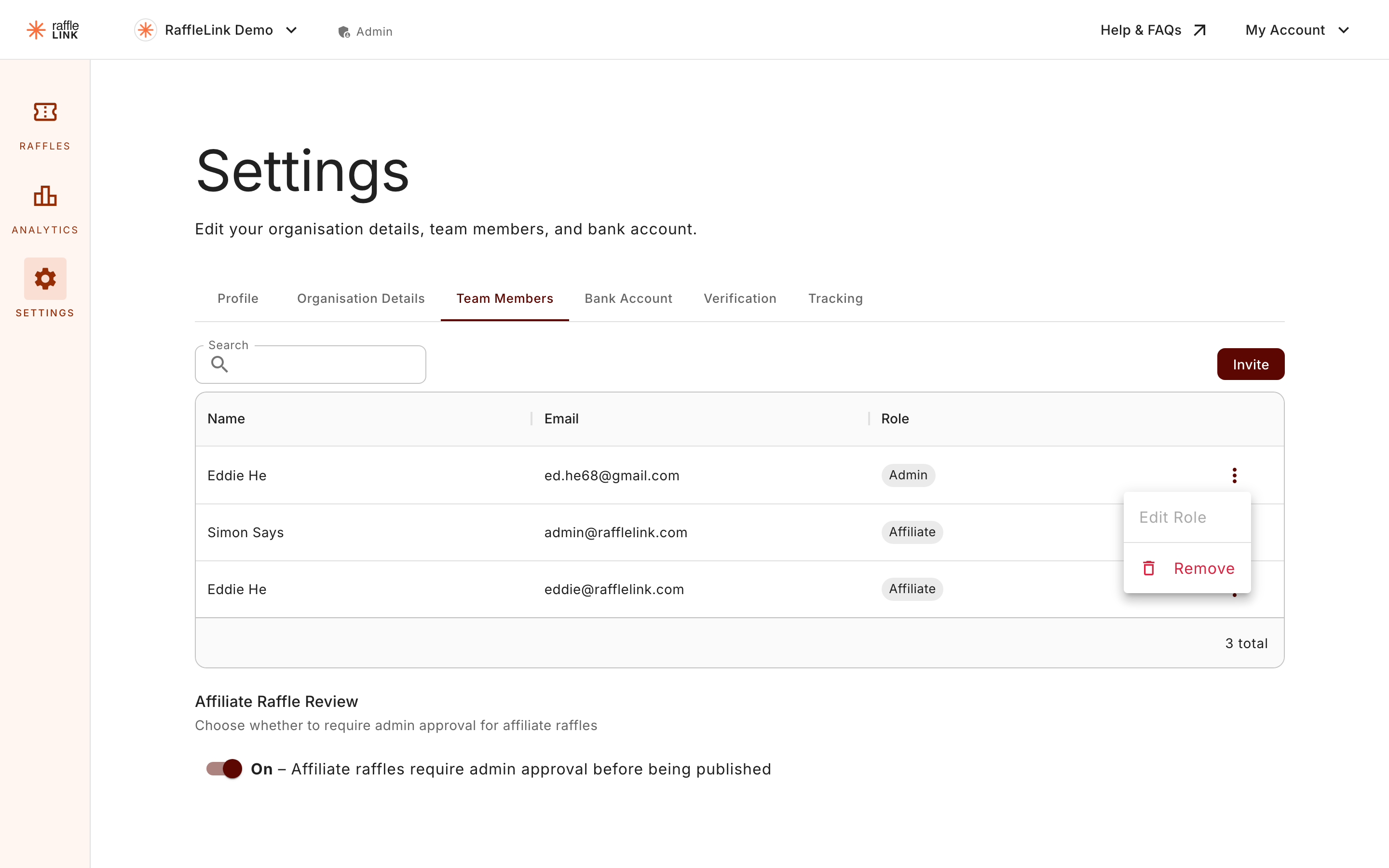
Changing your own role asks you to confirm
If you change your own role, RaffleLink double-checks with you first — because dropping yourself from admin could lock you out of things only an admin can do. Make sure another admin is in place before you reduce your own access.
Remove a teammate
To remove someone, find them in the team list and remove them from the organisation. They lose access immediately. The person is notified that they've been removed.
Don't leave the organisation without an admin
The one rule to keep in mind: your organisation should always have at least one active admin. Before removing an admin (or demoting yourself), make sure someone else has the admin role — otherwise no one can manage settings, payouts, or the team.
This matters most during a handover — add the new admin first, confirm they're set up, then remove yourself. See Handing over responsibilities.
Removing yourself
You can leave an organisation you're part of by removing your own membership — but the same rule applies: if you're the only admin, assign another admin first. If you're trying to leave and RaffleLink won't let you, that's usually why.